


Manage subscription type
Create and configure the different subscription types for your club
1 Go to the subscription types menu
From the main dashboard, go to SUBSCRIPTION → Manage subscription type. This section lets you configure all the subscription types available for your club.
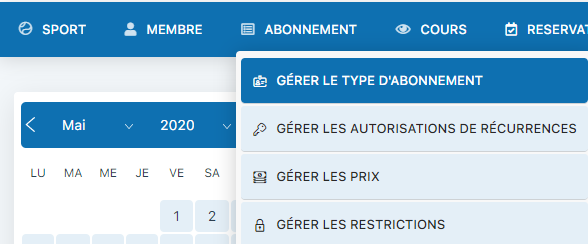
2 Select a season and create a subscription type
On the main screen, first select a season for which you want to configure the subscription types. Then double-click a day in that season to open the creation form.
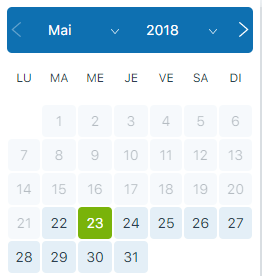
3 The configuration form
The form consists of three main sections. Here are the key elements to configure:
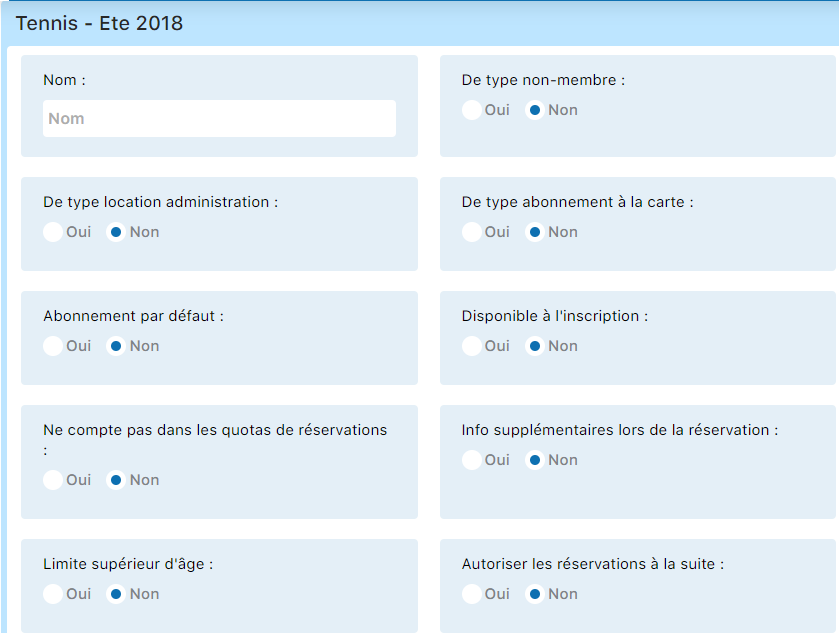
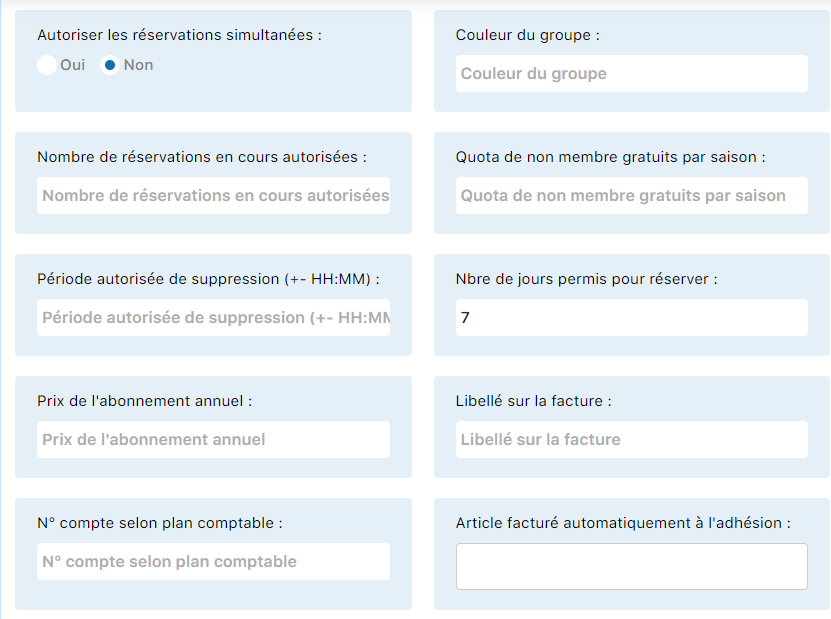
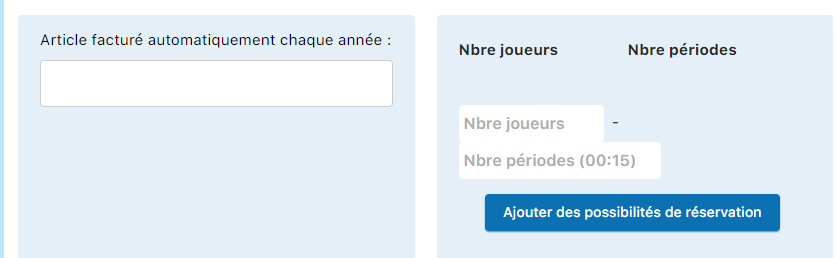
Note: Existing subscriptions are displayed in the list at the bottom of the page for reference.

Field descriptions
Here is a detailed description of all the settings available to configure a subscription type:
| Field | Description |
|---|---|
| Name | Name of the subscription type shown in drop-down lists (e.g., Adult, Child, Student) |
| Non-member type | Changes the number of guests allowed when booking with an accompanying person |
| Administration booking type | Allows administration to book for 2 non-members via the management system |
| Pay-as-you-go subscription type | Activates a limited quota system for bookings (see “Pay-as-you-go unit count”) |
| Default subscription | This subscription will be automatically offered to new members when they sign up |
| Available at registration | Makes this subscription type visible during online registration |
| Does not count toward quotas | Exempt from the booking quota restrictions defined at the system level |
| Additional information when booking | Requests additional information when booking (e.g., guest name, special notes) |
| Upper age limit | Age limit + next subscription type (automatic upgrade on birthday) |
| Consecutive bookings allowed | Maximum number of consecutive bookings on the same day |
| Simultaneous bookings allowed | Allows simultaneous bookings on different courts (e.g., for coaches) |
| Group color | Display color for the group in the booking calendar |
| Number of active bookings allowed | Total number of simultaneously active bookings allowed for this subscription type |
| Free non-member quota per season | Number of free invitations per season for non-members |
| Allowed cancellation window | Cancellation window relative to the time slot (e.g., +01:00 = 1h before, -00:15 = 15min after) |
| Number of days allowed for booking | Booking horizon in number of days (e.g., 30 = max 30 days in advance) |
| Annual subscription price | Annual rate applied to members with this subscription type |
| Invoice label | Text displayed on invoices to identify this subscription type |
| Account number per chart of accounts | Accounting account number for invoicing and financial reports |
| Item automatically invoiced upon joining | Item automatically generated on the invoice when joining the club |
| Item automatically invoiced every year | Item automatically generated annually for subscription renewal |
| Number of players / Number of periods | Ratio between the number of players and booking periods (e.g., 2 players = 2 periods = 30min, 4 players = 4 periods = 1h) |
💡 Tip
Plan your subscription types based on your pricing structure and management needs. “Default subscription” types make onboarding new members easier.
Chapter 6: Manage subscriptions
Plugin.ch - User Manual